
A ChatGPT WordPress integration usually means one of three setups: a plugin that calls the OpenAI API from inside one site, a Custom GPT that calls your REST API, or an MCP client that sits outside WordPress and operates every site you own. The first mostly writes text, the second reads and posts, and only the third handles site admin across several sites without a per-site fee.
TL;DR:
- The phrase covers three different setups (API-key plugin, Custom GPT with Actions, MCP client), and they solve different problems.
- A ChatGPT subscription does not include API credit, so a plugin that uses your key bills you separately per token.
- For one site and mostly text, a plugin is fine. For three or more sites, a per-site plugin multiplies cost and setup.
- Whatever route you choose, create a dedicated WordPress user with an application password so you can revoke access without touching your real login.
- The free route exists, but the API is never free, and the cheapest working setup is usually the one with the fewest moving parts.
Table of Contents
- Three Things People Mean by ChatGPT WordPress Integration
- Route One: An API-Key Plugin, and What the Bill Looks Like
- Route Two: A Custom GPT That Calls Your REST API
- Route Three: An MCP Client That Does the Admin
- ChatGPT WordPress Integration Free: What Costs Nothing and What Doesn't
- A Setup Walkthrough That Works for Any Route
- Security: What You Are Handing the AI
- Which Route to Pick: My Verdicts
- Run ChatGPT or Claude Across Every Site You Own for $97, Once
- Frequently Asked Questions
- Sources
Three Things People Mean by ChatGPT WordPress Integration
Search for this phrase and you get plugin listings, video walkthroughs and forum threads that all treat "integration" as one thing. The phrase covers three setups. Which one you need depends on whether you want text drafted, a site queried, or work actually done on the site.
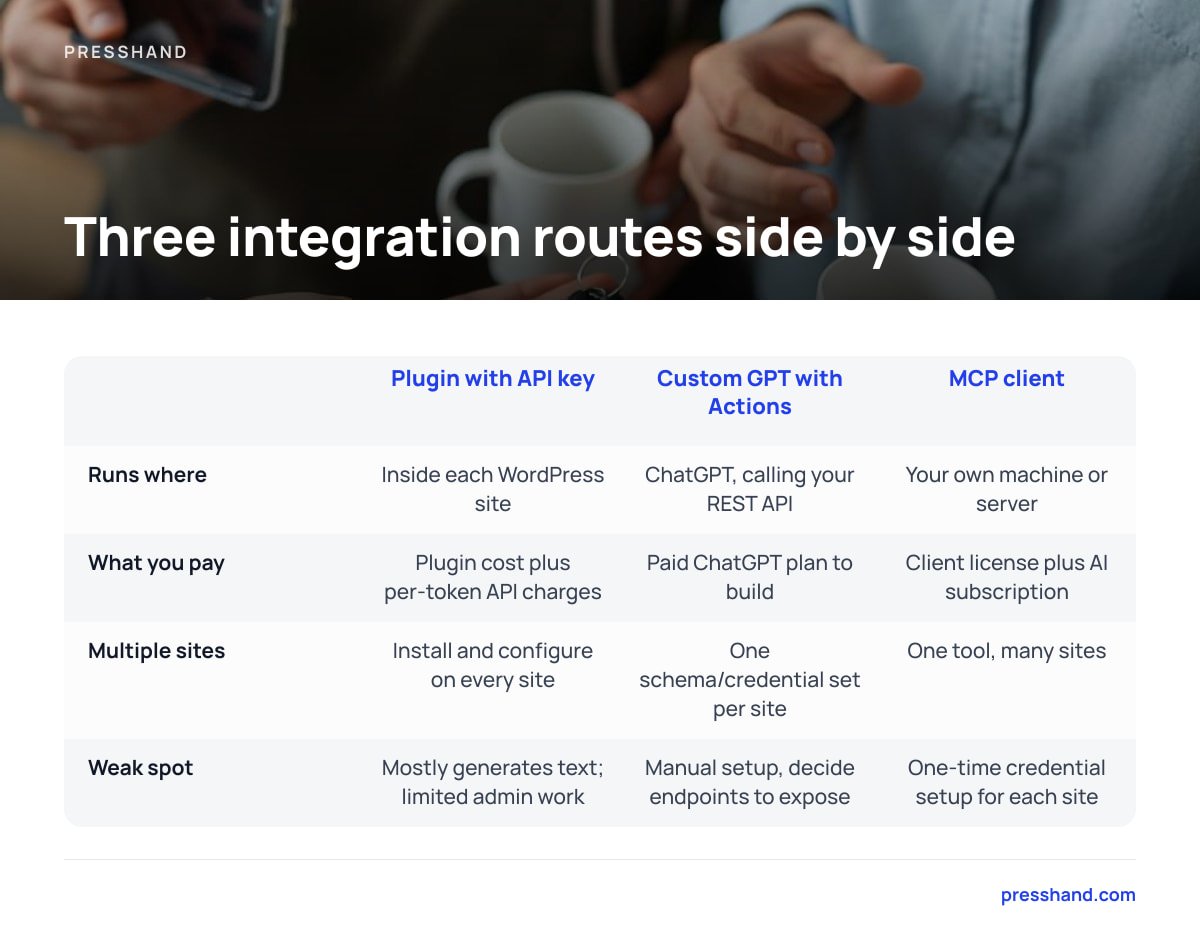
| Route | Runs where | What you pay | Multiple sites | Weak spot |
|---|---|---|---|---|
| Plugin with your API key | Inside each WordPress site | Plugin cost (if any) plus per-token API charges | Install and configure on every site | Mostly generates text; limited admin work |
| Custom GPT with Actions | ChatGPT, calling your site's REST API | A paid ChatGPT plan to build it | One schema and credential set per site | Manual setup, and you decide which endpoints to expose |
| MCP client | Your own machine or server | Client license plus your AI subscription or API usage | One tool, many sites | One-time credential setup for each site |
The first route puts the AI inside the site, and the third puts it beside the site. Most of the choices below follow from that.
Route One: An API-Key Plugin, and What the Bill Looks Like
This is the route most tutorials teach. You install a plugin, paste an API key from OpenAI, and get a "generate" button in the post editor or a chat widget for visitors.
A ChatGPT Plus subscription does not include API credit. OpenAI bills API usage separately, per token, so a plugin using your key charges you a second time.
People miss this constantly: they pay for ChatGPT, install a plugin, get an "insufficient quota" error and assume the plugin is broken. The plugin is working; it needs its own prepaid balance.
Plugins are good at two things. They put a text generator one click from the editor, and they can put a chatbot in front of your visitors. If a visitor-facing chat widget is what you want, this is the only route of the three that delivers it.
They are weaker at everything that is not typing. Fixing 40 missing image alt texts, reordering a menu, or auditing which plugins are out of date is not what a content-generation plugin is built for. And because the plugin lives inside the site, you repeat the install, the key and the settings on every site you run.
Route Two: A Custom GPT That Calls Your REST API
WordPress ships with a REST API that exposes posts, pages, media, comments and users as JSON. A Custom GPT with Actions can call those endpoints if you give it an OpenAPI schema and credentials.
The appeal is that it all happens in the ChatGPT window you already use. The cost is that you are the integration engineer. You write or adapt the schema, choose which endpoints to expose, and handle authentication. For a second site you do it again.
It also stops at what the core REST API covers. Core endpoints handle content well. SEO plugin data, page-builder layouts and plugin management either need extra endpoints or do not work. I would only pick this route for a single site where you enjoy tinkering and the task list is short.
Route Three: An MCP Client That Does the Admin
The Model Context Protocol, an open standard first published by Anthropic in late 2024, gives AI assistants a common way to call tools. An MCP client holds the connections and the tools. Claude or ChatGPT supplies the reasoning. You type "find every post under 300 words and list them", and the client runs the actual calls.
For anyone with more than one site, the connection lives in one place, so you do not configure it per site. We cover the mechanics in MCP Client Explained: Types, Support Gaps, and What to Pick, and the server-side half in MCP Server Setup: Local vs Remote, and What Actually Breaks.
An "MCP-WordPress plugin" typically means a server-side plugin that exposes one site to an AI tool. That is a valid design, but you install and maintain it per site, which brings back the per-site problem. A client-side tool avoids that. Whether the model on the other end is Claude or ChatGPT matters less than people think, and ChatGPT vs Claude for Running a WordPress Site goes through where each one wins.
ChatGPT WordPress Integration Free: What Costs Nothing and What Doesn't
Free plugins exist, and some are perfectly decent. What they cannot make free is the model. Every route needs one of these:
- A paid chat plan. Needed for Custom GPT building and for most MCP-style connections from the ChatGPT or Claude apps.
- API credit. Needed for any plugin that calls a model from your server. You pay per token, so a burst of 200 generated product descriptions costs real money.
- Your own time. The free route typically means more setup, which is a cost if you bill hourly.
My view: "free" is a fine way to test whether AI helps your workflow, and a poor basis for choosing a long-term setup. Run a free plugin on a staging site for a week, count how many tasks you actually did with it, then decide.
A Setup Walkthrough That Works for Any Route
Every route needs WordPress to trust the AI tool, and WordPress already has a sound mechanism for that. Application Passwords arrived in WordPress 5.6 and let an outside app authenticate through the REST API without ever holding your real password.
- Update first. Run a current WordPress version on HTTPS. Application Passwords require HTTPS on live sites.
- Create a dedicated user. Call it something like "ai-assistant" and give it the Editor role. Escalate to Administrator only when you need plugin or theme changes.
- Generate an application password. Open that user's profile, name the password after the tool using it, and copy it once. WordPress will not show it again.
- Connect the tool. Enter the site URL, username and application password in your client, plugin or Action.
- Test read-only. Ask for something harmless, like your five most recent drafts.
- Allow writes, drafts first. Have the AI save as draft until you trust the output. Publishing is one click away later.
If step 3 or 4 fails, the cause is nearly always one of a short list of issues. Passwords Not Working? Find Which of 3 Problems You Have walks through them.
Pro Tip: Make one application password per tool and per site, named after both ("claude-desktop-clientsite"). When a laptop is lost or a freelancer leaves, you revoke exactly one credential in a few seconds, and nothing else breaks. Sharing one password across tools means revoking it breaks everything at once, so people delay revoking.
Security: What You Are Handing the AI

An AI with write access can do damage faster than a human can. The OWASP Top 10 for LLM Applications lists prompt injection and excessive agency among its core risks, and both apply here. Prompt injection means text in a page, comment or document the AI reads can carry instructions. Excessive agency means the AI holds more permission than the task needs.
You can contain both with a few habits:
- Least privilege. An Editor-role user cannot install plugins or change settings, so a confused or manipulated AI cannot either.
- Drafts over publishing. An AI-written draft can be wrong; an AI-published one is wrong in public.
- Backups before bulk jobs. Take a snapshot before anything touching more than a handful of posts.
- Be careful with comments. Reading and summarizing visitor comments is a classic way for hostile text to reach the model.
Which Route to Pick: My Verdicts
One site, mostly text, and you want a visitor chatbot. Use a plugin. It is the only route that serves visitors, and the setup cost is paid once.
One site, you like building things. A Custom GPT is a reasonable weekend project. Expect to maintain it.
Three or more sites, or client sites. Use an MCP client. Say you pay a hypothetical $10 per site per month for plugin-based tooling across 10 sites: that is $1,200 a year, and the figure grows with every site you add. A one-time client removes that line from your budget, which is the argument behind tools like Presshand and the broader reasoning in WordPress AI Plugin: What to Pick When You Run Several Sites.
You are not sure. Start with the dedicated user and a read-only test on a staging copy. You will learn within an hour whether you need an assistant that writes or one that works.
Run ChatGPT or Claude Across Every Site You Own for $97, Once
If the problem you just read about is paying and configuring something per site, Presshand is built for that. It is a WordPress MCP client that runs on your own machine or server and connects Claude or ChatGPT to all your sites. It handles 83 jobs: posts, pages, images, menus, plugins, CSS and comments. It also scores a live page's SEO out of 100 and works with Yoast, Rank Math, All in One SEO and SEOPress. The license is $97 once, covering every site you own, with no monthly caps. The $197 Agency license adds rebrand and resell rights, and the ReplaStats analytics bonus comes with three months of access plus the WordPress plugin to keep.
One limit: Presshand does not include a model, so you still pay for your Claude or ChatGPT plan or API usage. It also does not put a chatbot in front of your visitors. Updates are included for 12 months, then optional at $49 a year, and the version you bought keeps working if you skip them.
Frequently Asked Questions
Does a ChatGPT subscription let a WordPress plugin use ChatGPT for free?
No. OpenAI bills API usage separately from ChatGPT subscriptions, so a plugin that uses your API key draws from a prepaid API balance. A paid chat plan does not cover it.
Is there a free ChatGPT WordPress integration?
Free plugins exist, but the model usage behind them is not free. Expect to pay per token for the API, or for a paid chat plan if you connect through an app. Free is best used for a short trial on a staging site.
Can I use Claude instead of ChatGPT with WordPress?
Yes. Claude connects through MCP, the same standard used by other AI assistants, so the choice of model is separate from the choice of integration route. An MCP client can typically work with either.
Is it safe to give an AI access to my WordPress site?
It is safe enough if you limit what it can do. Use a dedicated user with the Editor role, an application password you can revoke, drafts instead of auto-publishing, and a backup before bulk changes.
What is the difference between an MCP client and an MCP server plugin?
A server-side plugin lives on a WordPress site and exposes it to AI tools, so you install it on every site. A client runs outside WordPress and connects to many sites from one place.
Sources
- Model Context Protocol | Model Context Protocol project
- API Pricing | OpenAI
- REST API Handbook | WordPress.org Developer Resources
- Application Passwords: Integration Guide | WordPress Make Core
- OWASP Top 10 for Large Language Model Applications | OWASP Foundation