
When passwords are not working, the fault is almost always one of three things: the password is wrong, the saved copy is stale or missing, or the right password is being blocked before it arrives. A reset only fixes the first. Work out which you have before touching anything, or you will rotate a password that was perfectly good.
TL;DR:
- Sort the problem first: wrong password, missing saved password, or correct password rejected. Each has a different fix.
- Apple sync failures usually come down to four prerequisites: the same Apple Account, Passwords turned on in iCloud, two-factor authentication, and a device passcode.
- Your Apple Account password usually isn't in the Passwords app unless you saved it at a sign-in page, so a "missing" one is normal.
- On Android and Chrome, a paused sync or a switched autofill service explains most "vanished" passwords after an update.
- For WordPress application passwords, a 401 error usually means the Authorization header never arrived, not that the password is wrong.
Table of Contents
- Passwords Not Working: Sort Out Which of Three Problems You Have
- Why Doesn't the Password Work? Causes in Rough Order of Likelihood
- Why Aren't My Apple Passwords Syncing?
- Google Password Manager and Android: Why Saved Passwords Disappear
- What Is the Problem With Passwords, Really?
- WordPress Application Passwords Not Working: The 401 Checklist
- Get One Connection Fix That Works Across Every WordPress Site You Run
- Frequently Asked Questions
- Sources
Passwords Not Working: Sort Out Which of Three Problems You Have
Most advice starts with "reset it." That is the right move for exactly one of three situations, and a wasteful one for the other two. Spend 60 seconds sorting yours first.
- The password is wrong. You type it by hand into the right site, with autofill off, and it fails. This is the only case where a reset is the answer.
- The password is missing. It should be in your manager but isn't. Nothing is wrong with the credential; the sync, the app, or the autofill service is broken.
- The password is right but rejected. It works on another device or in a private window, but not here. Something between you and the server (a lockout, a stripped header, a clock error) is the culprit.
The test is cheap. Open a private window, type the password manually, and watch what happens. If it works, your saved entry or autofill is the problem. If it fails everywhere, the password is wrong or the account is locked.
Why Doesn't the Password Work? Causes in Rough Order of Likelihood
Start with the dull explanations. They account for more failures than breaches or bugs do.
| Symptom | Likely cause | First fix |
|---|---|---|
| Works typed, fails on autofill | Manager saved an old or mistyped version | Delete the stale entry, save the new one |
| Fails everywhere, no error detail | Caps Lock, wrong keyboard layout, or trailing space from pasting | Reveal the text and retype it |
| "Too many attempts" | Temporary lockout | Wait out the timer; do not keep trying |
| Works on phone, fails on laptop | Different saved entries on each device | Check which entry each device holds |
| Password accepted, then a second prompt | Two-factor code or expired session | Check device clock and 2FA method |
| App or API rejects a password that works in the browser | Wrong credential type | Use the app-specific credential (see the WordPress section) |
Forced rotation also bites. NIST's digital identity guidelines say services should not require users to change passwords on a schedule, and should allow pasting into password fields. Sites that ignore this produce the very thing you are fighting: stale saved entries that no longer match the account.
Why Aren't My Apple Passwords Syncing?
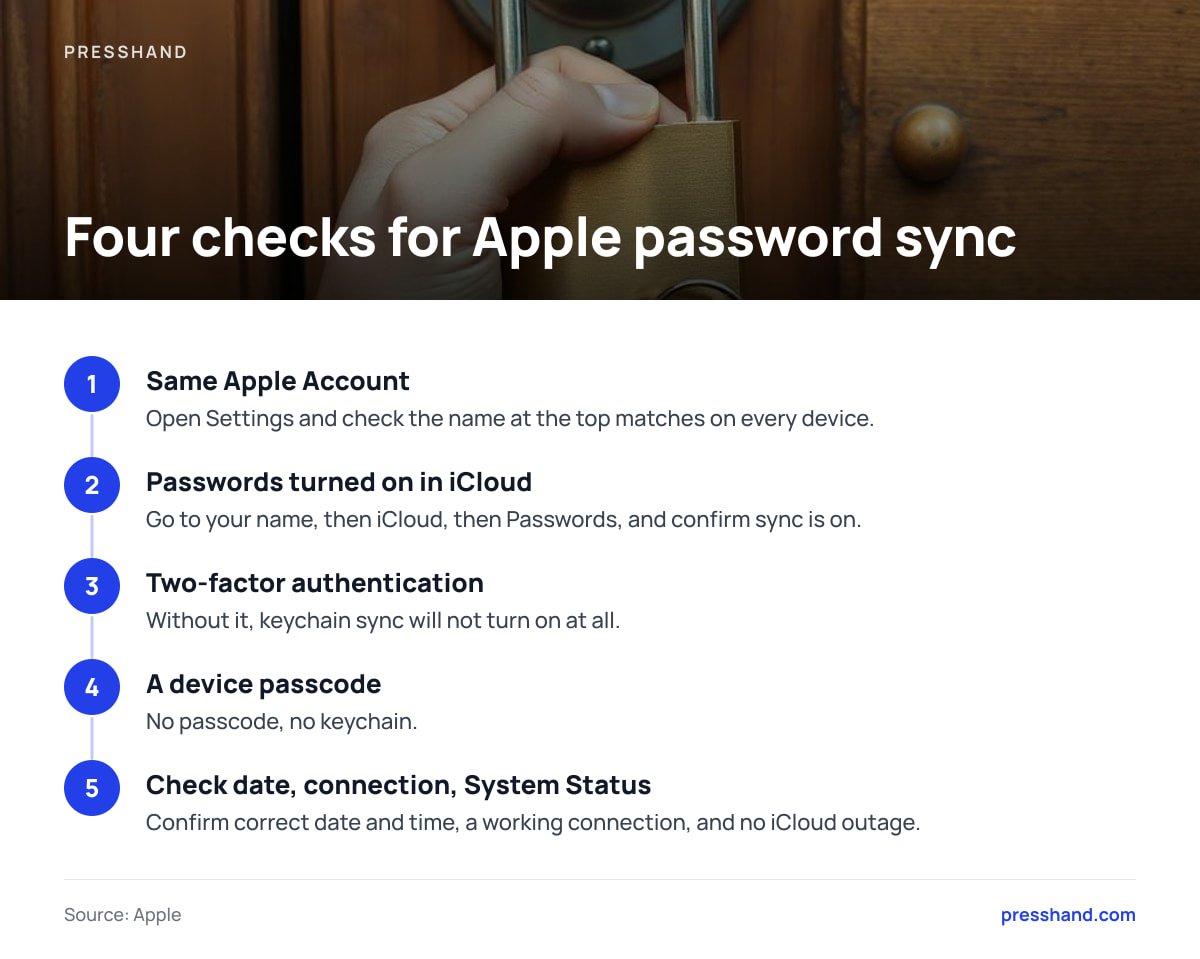
Apple sync breaks for a short list of reasons, and you can check all of them in about two minutes. According to Apple's support documentation, iCloud Keychain needs you signed in with the same Apple Account on every device, two-factor authentication turned on, and a passcode set on the device.
The Four Prerequisites, Checked in Order
- Same Apple Account. Open Settings and look at the name at the top. A second account on your iPad is more common than you would think.
- Passwords turned on in iCloud. On iPhone, go to your name, then iCloud, then Passwords (labeled Passwords & Keychain on older versions), and confirm sync is on.
- Two-factor authentication. Without it, keychain sync will not turn on at all.
- A passcode. No passcode, no keychain.
If all four check out, look at the boring infrastructure: correct date and time, a working connection, and Apple's System Status page for any iCloud outage. Then sign out of iCloud on the stubborn device and back in, but export your passwords first. On a Mac, the Passwords app has an export option under File that produces a CSV. That file is unencrypted, so treat it like cash on a table: save it, use it, delete it.
Why Isn't My Apple ID Password Showing Up in the Passwords App?
Because it usually was never saved there. The Passwords app stores credentials for websites and apps you signed into with autofill saving turned on. Your Apple Account password is the key to the whole keychain, so it only appears if you saved it when signing in on a web page. Apple's Passwords app also needs iOS 18, iPadOS 18, or macOS Sequoia; older systems keep passwords under Settings.
If you need the Apple Account password itself, do not hunt for it. Reset it through Apple's account recovery at iforgot.apple.com.
iCloud Passwords Not Syncing on Windows 11
The Windows route runs through iCloud for Windows plus a browser extension, and the extension pairs with a six-digit verification code. If the code never appears or the extension says it can't connect, check that Passwords is ticked inside the iCloud for Windows app, that both the app and the extension are up to date, and that you restarted the browser after installing. Pairing is the fragile step, so repeat it from scratch rather than nudging a half-working setup.
Google Password Manager and Android: Why Saved Passwords Disappear
Google's manager has two moving parts that people mistake for one. There is the account-level store you can inspect at passwords.google.com, and there is the device-level autofill service that fills the fields. Passwords can sit safely in the first while the second does nothing.
- Sync paused. Changing your Google Account password pauses Chrome sync until you sign in again. The passwords are not gone; the browser is waiting for you.
- Autofill service switched. On Android, go to Settings, then search for Autofill service. If it was changed to something else after an update, your Google passwords will not appear in the fill prompt.
- Saving turned off. Chrome's "Offer to save passwords" toggle can end up off, so new passwords never get stored. You will not notice until months later.
- Wrong profile. Chrome profiles each have their own sync. If you signed in under the wrong one, the list looks empty.
Before you do anything drastic, open passwords.google.com. If the entries are there, the store is fine and the fix is local. If the list is empty, you are signed into the wrong account.
What Is the Problem With Passwords, Really?
The problem is that passwords ask humans to be random, unique, and consistent all at once. Reuse is the usual way that goes wrong: one breached site hands attackers a working login for ten others. You can check exposure for free at Have I Been Pwned, which lists known breaches tied to an email address.
The practical answer is to stop managing passwords in your head. Pick one manager, whether Apple's or Google's, and use it everywhere you can. I would pick the one that matches the phones and laptops you already own, because cross-platform sync is where most of the pain above comes from. A mixed household (iPhone plus Windows laptop, say) is where Apple's route is at its most fragile, and a browser-based store works better.
Resetting a password that was never wrong is the most common way to turn a 30-second sync problem into an hour of account recovery.
WordPress Application Passwords Not Working: The 401 Checklist
This is where "right password, still rejected" gets technical. WordPress has supported application passwords since version 5.6. They are separate credentials you generate on a user profile for tools that connect over the REST API. WordPress's developer documentation describes how requests authenticate with them, and our own guide to what application passwords do and why they fail covers the background.
An application password is 24 characters, shown in six groups of four, and the spaces don't matter. That means the usual suspects are not the characters. Work through these in order:
- Use the application password, not your login password. Your normal password will be rejected by REST API calls. Generate a fresh one on the profile screen.
- Check HTTPS. WordPress only offers application passwords over HTTPS on live sites. If the section is missing from your profile, a security plugin or the host may have turned the feature off, or the site is serving over plain HTTP.
- Use the exact username. Take it from the profile page, not your display name.
- Look for a stripped Authorization header. Some Apache setups running CGI or FastCGI drop the header before WordPress sees it. The usual fix is a rewrite rule in
.htaccessthat passesHTTP_AUTHORIZATIONthrough. The WordPress core team's integration guide is the reference. - Check for double authentication. A staging site behind its own HTTP basic auth uses that same header, so the two collide.
- Read the status code. A 401 means WordPress did not accept or never received your credentials. A 403 means you authenticated fine but the user's role, or a firewall, forbids the action.
Pro Tip: Before regenerating anything, run one request from the command line with curl against /wp-json/wp/v2/users/me. If it returns your user, the password is fine and your client is at fault. If it returns 401, the header is being stripped and no number of new passwords will help.
For the full setup path, see how to set up application passwords and fix failed logins. If your connection problems sit one layer up, local versus remote MCP server setup covers what breaks there.
Get One Connection Fix That Works Across Every WordPress Site You Run
If you manage several WordPress sites, the application-password checklist above is the one you will repeat most often. Every site needs its own credential, its own HTTPS check, and its own chance of a host quietly eating the Authorization header. Presshand is a WordPress MCP client that runs on your machine or server and connects Claude or ChatGPT to all of them, so once each site's application password works, you manage posts, menus, plugins, and SEO in plain English from one place. It costs $97 once for every site you own, with no per-site fees; the Agency licence is $197 and adds rebrand and resell rights.
The caveat is that Presshand depends on those credentials working. It cannot talk to a site whose host strips the header or whose security plugin blocks application passwords, so you still fix that yourself, using the steps above. Updates are included for 12 months, then optional at $49 a year. If you are still deciding how the pieces fit, our guide to choosing an MCP client is the honest comparison.
Frequently Asked Questions
Why are my Apple passwords not syncing?
Check that every device uses the same Apple Account, that Passwords is turned on under iCloud, that two-factor authentication is enabled, and that a device passcode is set. If all four are fine, confirm the date and time are correct and check Apple's System Status page for an iCloud outage. Export your passwords before signing out and back in.
What is the problem with passwords?
People are asked to create long, random, unique passwords for dozens of accounts, so they reuse them or choose guessable ones. A single breach then exposes every account sharing that password. A password manager removes the memory burden and makes unique passwords practical.
Why doesn't the password work?
Common causes are a stale saved entry, Caps Lock or a wrong keyboard layout, a trailing space from pasting, a temporary lockout, or a password that was changed elsewhere. Type it by hand in a private window with autofill off to see whether the password or the saved copy is at fault. Reset only if it fails there too.
Why isn't my Apple ID password showing up in the Passwords app?
Your Apple Account password is usually not stored there, because it unlocks the keychain itself. It appears only if you saved it when signing in at a web page. If you need it, use Apple's account recovery instead of searching.
Why do my WordPress application passwords get a 401 error?
A 401 usually means WordPress did not receive or accept the credentials. Common causes are using your normal login password, a site not on HTTPS, a security plugin disabling the feature, or the host stripping the Authorization header. Test with curl against /wp-json/wp/v2/users/me to separate a bad password from a blocked header.
Sources
- Digital Identity Guidelines: Authentication and Authenticator Management (SP 800-63B) | NIST
- Apple Support | Apple
- REST API Handbook: Authentication | WordPress.org Developer Resources
- Application Passwords: Integration Guide | WordPress Core Make blog
- Have I Been Pwned | Have I Been Pwned