
A WordPress workflow is the repeatable path a change takes from idea to live page, and the part that matters is not your tool list but where you put the checkpoints and the undo button. A good one has five stages, one human approval gate, and a tested way back. Everything else, including AI, is a way to run those stages faster.
TL;DR:
- A WordPress workflow is five stages (plan, draft, review, publish, maintain), and the approval gate and rollback matter more than the tools.
- Staging earns its keep for plugin, theme, and code changes; for ordinary content, drafts and revisions are enough.
- Recurring chores across multiple sites are the real cost: 12 sites × 6 chores × 10 minutes is 12 hours a month.
- AI belongs in the draft and maintain stages, with a dedicated low-privilege user and a human publishing gate.
- For one site, free built-in tools are fine; for several, a one-time-fee client beats per-site subscriptions.
Table of Contents
- What a WordPress Workflow Is, and Why Most Fall Apart
- The Five Stages of a WordPress Workflow, With a Free Template
- Staging Sites: Where They Earn Their Keep, and Where They Waste an Hour
- A Content Workflow With One Human Gate
- The Maintenance Arithmetic Nobody Prints
- Where AI Fits in a WordPress Workflow, and How to Connect It Safely
- The Best WordPress Workflow by Situation: What I'd Pick
- Run This WordPress Workflow Across Every Site for $97
- Frequently Asked Questions
- Sources
What a WordPress Workflow Is, and Why Most Fall Apart
Most advice treats a WordPress workflow as a pile of tools: a project board here, a staging plugin there, a backup service in the corner. That's the wrong way round. A workflow is a sequence with three properties: every change passes through the same stages, someone (or something) has to approve before it goes live, and you can reverse it afterwards.
Most workflows fail at the third property. People set up backups and never test a restore. They write a checklist and never open it after week two. The failure is rarely that the process was too simple; it's that it was too fiddly to follow on a Tuesday afternoon with a client waiting.
WordPress also makes the stakes larger than you'd think. W3Techs tracks WordPress as the content management system behind more than 40% of all websites, which means a lot of people are improvising this process on production sites right now.
The Five Stages of a WordPress Workflow, With a Free Template

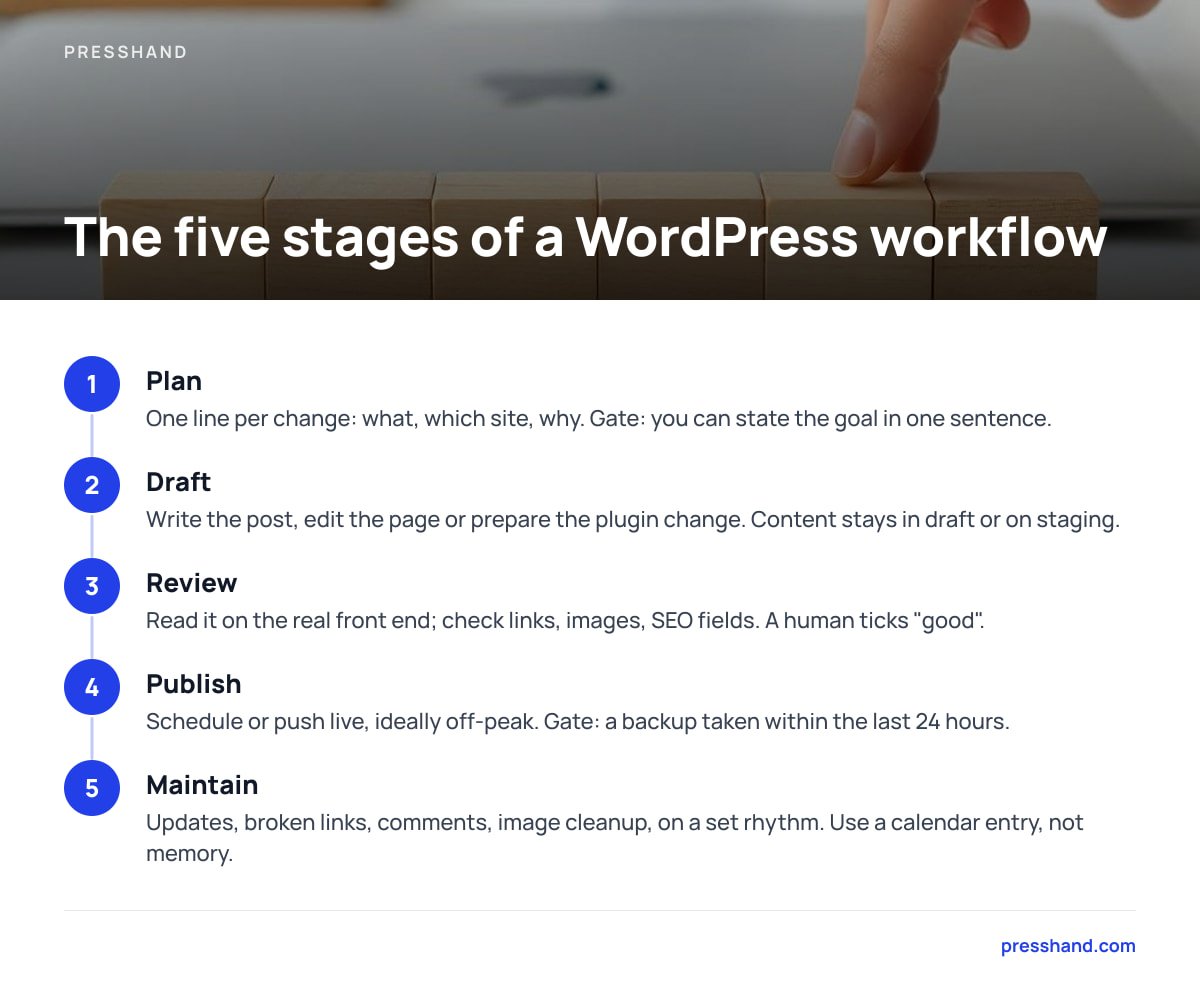
Here is the template. It's free, it fits in a note on your phone, and it works for a solo blogger or a ten-site agency. Copy it into whatever you already use.
| Stage | What happens | Gate | Undo |
|---|---|---|---|
| 1. Plan | One line per change: what, which site, why | You can say the goal in one sentence | Delete the line |
| 2. Draft | Write the post, edit the page, prepare the plugin change | Content stays in draft or on staging | Revision history |
| 3. Review | Read it on the real front end; check links, images, SEO fields | A human ticks "good" | Back to draft |
| 4. Publish | Schedule or push live, ideally off-peak | Backup taken within the last 24 hours | Restore point |
| 5. Maintain | Updates, broken links, comments, image cleanup, on a set rhythm | Calendar entry, not memory | Backup plus changelog |
Two rules make the table work. First, a change is not "done" until you've looked at it on the live site, not in the editor. Second, stage 4 does not happen without a restore point you've actually tested once. Do the restore test on a throwaway site this week; it takes about twenty minutes and it's the single most useful dull thing in this article.
Staging Sites: Where They Earn Their Keep, and Where They Waste an Hour
The obvious advice is "always use staging." It's wrong about half the time.
Use staging for
- Plugin and theme updates. A bad update can white-screen a site, and the cost of finding that out on staging is zero. Our guide to managing WordPress plugins without breaking your sites covers the update order that cuts the risk further.
- Custom CSS and template edits. Layout changes can break on mobile in ways the editor won't show you.
- Checkout and form changes. Anything that touches money or leads deserves a dry run.
Skip staging for
- Ordinary posts and pages. A draft is already a staging area. Write it as a draft, preview it, publish it. Cloning a whole site to fix a typo costs more time than the typo ever will.
- Alt text, meta descriptions, and menu labels. These are small, reversible, and covered by revisions or a quick re-edit.
A draft is a staging site for words. Reserve real staging for code, plugins, and anything that handles money.
The trade-off is honest: skipping staging for content means you're trusting revisions and a recent backup. That's a fair bet for text. It's a poor one for a checkout page.
A Content Workflow With One Human Gate

If you use AI to draft, the workflow question is not "can it write?" but "who is accountable when it's wrong?" Google's guidance on generative AI content says that using AI is not against its guidelines, but that producing content mainly to manipulate rankings counts as spam. In practice, that points to a simple rule: AI drafts, a person publishes.
A content workflow that holds up looks like this:
- Brief in one paragraph. Target query, audience, one thing the page must say that competitors don't.
- Draft saved as draft. Never straight to publish. The status field is your gate.
- Human pass. Check every number, name, and claim. Cut anything vague.
- SEO fields last. Title, meta description, and slug after the text is final, so they describe the page that exists. Our AI SEO audit breakdown lists what automated scoring catches and what it misses.
- Publish, then view the live URL. Fifteen seconds, and it catches broken images more often than you'd expect.
Pro Tip: Give your AI tooling its own WordPress user with the Editor role, not your Administrator login. Every revision then carries that user's name, so when something looks odd in three months you can tell which edits were machine-made at a glance. Editors can't install plugins or change settings, which also caps the damage from a bad prompt. Switch to an admin credential only for the specific plugin job that needs it.
The Maintenance Arithmetic Nobody Prints

Every competing guide covers building a site. Almost none puts a number on keeping several alive, which is where the hours go. Here is the sum, using assumptions you can swap for your own:
| Item | Assumption |
|---|---|
| Sites managed | 12 |
| Recurring chores per site, per month | 6 (plugin updates, comment cleanup, broken-link check, image compression, SEO field fixes, menu or footer tweaks) |
| Minutes per chore, including login and checking | 10 |
| Total | 12 × 6 × 10 = 720 minutes |
Twelve sites, six chores, ten minutes each: 12 hours of clicking every month before anything actually goes wrong.
That is the number a good WordPress workflow should attack. The levers are batching (do all plugin updates in one sitting, not scattered), cutting login overhead (one dashboard instead of twelve), and handing the repetitive chores to something that doesn't get bored. For a broader look at the options, see our piece on picking a WordPress management tool by job, not feature list.
A cost note, since per-site pricing quietly punishes this exact setup: a hypothetical $10 per site per month across 12 sites is $1,440 a year, every year. That's a reasonable price for some jobs. For plain admin work, it's the wrong shape.
Where AI Fits in a WordPress Workflow, and How to Connect It Safely
AI belongs in two stages: drafting (stage 2) and maintenance (stage 5). It's weakest at review, because it will agree with its own output, and at publishing, because accountability needs a person.
The plumbing is less mysterious than it sounds. WordPress exposes its content through the REST API, and the Model Context Protocol is an open standard that lets an AI assistant like Claude call tools in a structured way. An MCP client sits between them. If you want the setup details, we've written up how to set up an MCP server, including when not to.
Authentication is where most connections fail. WordPress 5.6 added Application Passwords, which let you generate a separate, revocable credential for each application instead of sharing your main login. Three habits keep this safe:
- One credential per tool. If you revoke one, nothing else breaks.
- Least privilege. Use the Editor-level user from the Pro Tip above for content work.
- Read the failure messages. Most connection errors trace back to security plugins or server rules blocking the REST API; our guide on why Application Passwords fail walks through the usual suspects.
The Best WordPress Workflow by Situation: What I'd Pick
There's no universal best, but there is a best for you. These are my picks, with reasons.
- One site, you do everything. Built-in drafts, revisions, a scheduled backup, and the five-stage template. Don't buy anything. Complexity is your enemy here.
- Three to five sites, mostly content. The same, plus one tool that lets you manage all sites from one place. The login-hopping is where your time disappears first.
- Ten or more sites, or client sites. Staging for code changes, a human gate for content, and AI doing the repetitive stage-5 work. This is where the 12-hours-a-month number gets painful enough to justify tooling.
- Agency with a team. Add named users per person and per tool, so the revision history can answer "who changed this?" without a meeting.
My firm opinion: automate chores, never approvals. The moment a workflow publishes unreviewed AI output on a client's site, you've traded a few saved minutes for a reputational risk that costs far more.
Run This WordPress Workflow Across Every Site for $97
The problem this article keeps circling is the chore tax: the same small jobs, repeated across every site, eating a day a month. Presshand is built for exactly that. It's a WordPress MCP client that runs on your own machine or server and connects Claude or ChatGPT to all your sites, so you can ask in plain English for posts, SEO fixes, menus, plugin changes, image cleanup, or comment moderation. It covers 83 WordPress jobs, scores live pages out of 100 for SEO, and works with Yoast, Rank Math, All in One SEO, and SEOPress.
The license is $97 once, for every site you own, with no per-site fees or monthly caps. The Agency license is $197 and adds rebrand and resell rights. Updates after the first 12 months are optional at $49 a year, and the ReplaStats analytics bonus (three months, plus the WordPress plugin to keep) comes with it. The caveat: Presshand does not replace backups or staging. Take a restore point before plugin work, keep your human publishing gate, and check the spec sheet for the exact job list before you buy.
Frequently Asked Questions
What is a WordPress workflow?
A WordPress workflow is the repeatable sequence a change follows from idea to live site, typically planning, drafting, reviewing, publishing, and maintaining. The useful versions include one approval gate and a tested way to undo changes.
Is there a free WordPress workflow template?
Yes. The five-stage table in this article (plan, draft, review, publish, maintain, each with a gate and an undo) is free to copy into any notes app or project board. It works for single sites and for agencies.
Do I need a staging site for every WordPress change?
No. Staging is worth it for plugin and theme updates, custom code, and checkout or form changes. For ordinary posts and pages, saving as a draft and using revisions is faster and carries very little risk.
Can I use AI in a WordPress workflow without hurting SEO?
Google's guidance says AI-generated content is not against its guidelines in itself, but content produced mainly to manipulate rankings is treated as spam. Have AI draft, have a person fact-check and publish, and add something original to every page.
What is the best WordPress workflow for managing multiple sites?
Batch your recurring chores, manage all sites from one place, and use staging only for code and plugin changes. Add AI for repetitive maintenance, but keep a human approval step before anything goes live.
Sources
- Usage statistics and market share of WordPress | W3Techs
- Using generative AI content | Google Search Central
- REST API Handbook | WordPress Developer Resources
- Application Passwords Integration Guide | WordPress Core Make Blog
- Model Context Protocol | Model Context Protocol