
WordPress application passwords are per-app credentials, built into core since WordPress 5.6, that let outside software reach your site through the REST API or XML-RPC without your real login password. They are not a weaker or limited version of your password. Each one carries every permission your user account has, and you can revoke any one of them without touching the others. Most "not working" reports come from HTTPS detection or a stripped server header, not from the password.
TL;DR:
- Application passwords have been part of WordPress core since 5.6, so you don't need a plugin to get them.
- Each password inherits the full capabilities of the user who created it, and there is no read-only scope.
- If the section is missing from your profile, the cause is usually failed HTTPS detection, a security plugin, or a code filter.
- A 401 "not logged in" error usually means your server stripped the Authorization header, not that you typed the password wrong.
- Use a dedicated user for each integration, name each password after the app that uses it, and revoke anything you don't recognize.
Table of Contents
- What WordPress Application Passwords Actually Are, and What They Can't Do
- Creating One Properly: Which User, Which Name, Which Role
- Why WordPress Application Passwords Are Not Showing in Your Profile
- "Requires HTTPS, Which Is Not Enabled": The Reverse Proxy Trap
- Created It, Still Getting 401: The Missing Authorization Header
- Application Passwords Versus the Other Ways to Connect
- Security Hygiene: What to Check, When to Revoke
- Run Every Site From One Chat Window, Using the Passwords You Just Fixed
- Frequently Asked Questions
- Sources
What WordPress Application Passwords Actually Are, and What They Can't Do
An application password is a 24-character credential that WordPress generates for one user, for one purpose. It shows up in six groups of four characters. The spaces are only there for readability, and WordPress accepts the password with or without them. The feature started as a separate plugin and was merged into core in WordPress 5.6. The Make WordPress Core integration guide still describes the design that ships today.
Application passwords work for API requests only. They authenticate requests to the REST API and XML-RPC using HTTP Basic authentication. WordPress refuses them at the normal login screen. Someone who steals one can't sign in to wp-admin with it. However, they can do anything over the API that the account is allowed to do.
24 characters, shown once. WordPress stores only a hash, so a lost application password cannot be recovered. You can only revoke it and make a new one.
Each password records when it was last used and from which IP address. That record is the most useful security feature in the whole system, and few people check it. If you want a refresher on what the REST API is before going further, our plain-English guide to how APIs work, using your WordPress site covers it.
Creating One Properly: Which User, Which Name, Which Role
The mechanics take thirty seconds. Go to Users → Profile, scroll to the Application Passwords section, type a name, and click "Add New Application Password." Copy the password immediately, because WordPress will not show it again. Our step-by-step setup and failed-login guide walks through the full process with screenshots.
The more important decision comes before you click: which user should own the password?
- Don't default to your own admin account. Every application password inherits all of its owner's capabilities. If you create one on an administrator account for a tool that only drafts posts, that tool can still delete plugins.
- Create a dedicated user per integration. For example, "api-newsletter" as an Author, or "api-seo" as an Editor. If the integration misbehaves, you can see which account did it, and removing that user removes everything it can do.
- Accept that some jobs genuinely need Administrator. Installing or updating plugins, editing menus, and changing theme settings require admin capabilities. In those cases, an admin-owned password is the correct choice. Just keep it to one per tool.
- Name passwords after the tool and the machine. "Laptop – drafting tool" tells you something in eight months. "test2" tells you nothing.
An application password can do everything its user can do. WordPress has no read-only or per-endpoint scope, so the user's role is the only limit you control.
When you connect, use the account's login username. The display name doesn't work, and the login username is the safest identifier to give any client.
Why WordPress Application Passwords Are Not Showing in Your Profile
If the section is missing from Users → Profile, WordPress has decided the feature isn't available. The wp_is_application_passwords_available() reference shows how that decision is made. By default, WordPress requires the site to be served over HTTPS, or the environment type to be set to local. Any plugin or theme can then override the result with a filter.
In practice, there are four causes, roughly in order of how often you'll hit them.
The site isn't detected as HTTPS
Your profile page shows a notice that the feature requires HTTPS. The next section explains why this happens even on sites that clearly have a padlock in the browser.
A security plugin switched it off
Several hardening plugins include a "disable application passwords" option, and some turn it on as a default. Look through your security plugin's settings for anything mentioning application passwords or REST API authentication before you start editing code.
Code is filtering it out
A line like add_filter( 'wp_is_application_passwords_available', '__return_false' ); in a theme's functions.php, a must-use plugin, or a host-installed plugin will hide the feature completely. Search your codebase for application_passwords.
The WordPress version is older than 5.6
This is rare now, but it still turns up on abandoned client sites. The fix is an update, not a plugin. The old standalone application passwords plugin is redundant on any modern install, so don't go looking for one.
"Requires HTTPS, Which Is Not Enabled": The Reverse Proxy Trap

The message "The application password feature requires HTTPS, which is not enabled on this site" confuses people because their site visibly runs on HTTPS. The usual explanation is that HTTPS ends at a load balancer, CDN, or reverse proxy, and the proxy talks to WordPress over plain HTTP. WordPress checks the connection it actually received, sees HTTP, and turns the feature off.
You can confirm this in a couple of ways. Check whether your host puts a proxy or CDN in front of your server. Also check whether the WordPress Address and Site Address under Settings → General start with https://. If both URLs use HTTPS and the warning persists, the proxy is almost certainly the cause.
The fix is to tell WordPress to trust the protocol header the proxy forwards. Add this to wp-config.php above the "stop editing" line:
if ( isset( $_SERVER['HTTP_X_FORWARDED_PROTO'] ) && $_SERVER['HTTP_X_FORWARDED_PROTO'] === 'https' ) {
    $_SERVER['HTTPS'] = 'on';
}
The tempting shortcut is to force the filter to true so the warning goes away. Don't do that on a live site. Basic authentication sends your username and password with every request, and the encoding provides no protection. RFC 7617, the IETF standard for Basic authentication, states that the scheme is not secure unless used together with an external secure system such as TLS. If you force the feature on over real HTTP, you broadcast an admin-level credential on every API call.
The one legitimate exception is local development. Set define( 'WP_ENVIRONMENT_TYPE', 'local' ); in wp-config.php, and WordPress will allow application passwords without HTTPS on that machine.
Created It, Still Getting 401: The Missing Authorization Header
This is the failure people most often get wrong. You create a password, paste it into your tool, and get a 401 error. Naturally, you assume you mistyped it. You probably didn't.
Pro Tip: Before you blame the app, test the site directly. Run curl --user "yourusername:xxxx xxxx xxxx xxxx xxxx xxxx" https://example.com/wp-json/wp/v2/users/me?context=edit and read the error code, not just the status number. If the code is incorrect_password, the credential reached WordPress and was rejected. If the code is rest_not_logged_in, WordPress never saw a credential at all, which means something between the internet and PHP removed it.
That second case is the common one. Some Apache setups, especially PHP running as CGI or FastCGI, don't pass the Authorization header through to PHP. Two fixes cover most servers:
- Apache 2.4.13 and later: add
CGIPassAuth Onto.htaccessor the virtual host. This directive is documented in the Apache core module reference. - Any Apache with mod_rewrite: add
RewriteRule .* - [E=HTTP_AUTHORIZATION:%{HTTP:Authorization}]inside the<IfModule mod_rewrite.c>block of.htaccess. Hand-edited or migrated.htaccessfiles often lack this rule.
Here is the trade-off nobody mentions. If your staging site sits behind server-level password protection (the browser pop-up kind), that protection also uses the Authorization header. The server consumes it, and WordPress never receives your application password. You can't easily satisfy both with one header. Either allow /wp-json/ through the server protection, or use IP allow-listing for staging instead.
| Symptom | Most likely cause | Fix |
|---|---|---|
| Section missing, HTTPS notice shown | Proxy ends HTTPS before WordPress | Trust X-Forwarded-Proto in wp-config.php |
| Section missing, no notice | Security plugin or code filter | Check plugin settings, search for application_passwords |
401 with rest_not_logged_in |
Server stripped the Authorization header | CGIPassAuth On or the rewrite rule |
401 with incorrect_password |
Wrong username or revoked password | Use the login username and generate a fresh password |
| 403 on a specific action | User role lacks that capability | Change the role or use a different account |
| Works on one site, fails on another | Different host configuration | Run the curl test on each site |
| Tool says the feature is "disabled in your site" | Any of the first two rows | Start with the profile page, then the filters |
That last row matters because a third-party tool can only report what the API tells it. When a tool says the feature appears to be disabled on your site, it's usually reading the same availability check described above.
Application Passwords Versus the Other Ways to Connect
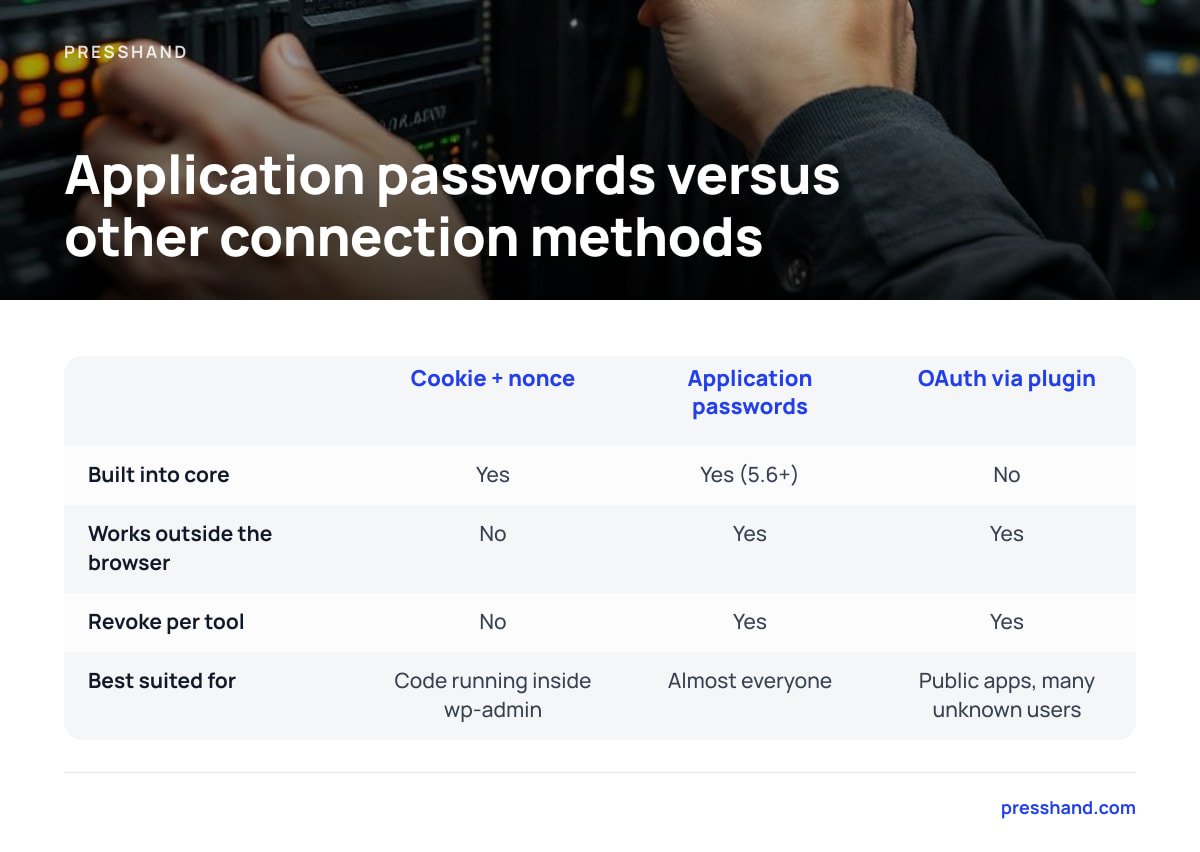
The REST API handbook's authentication page lists cookie authentication and application passwords as the built-in options, and plugins can add others. Here's how they compare for the job most people have in mind: letting an external tool manage a site.
| Method | Built into core | Works from outside the browser | Revoke per tool | Our verdict |
|---|---|---|---|---|
| Cookie + nonce | Yes | No | No | Fine for code running inside wp-admin, useless for external tools |
| Application passwords | Yes (5.6+) | Yes | Yes | The default choice for almost everyone |
| Token plugins (JWT and similar) | No | Yes | Varies | One more plugin to patch, and rarely worth it unless you need expiring tokens |
| OAuth via plugin | No | Yes | Yes | Worth it for public apps with many unknown users, overkill for your own sites |
Our position is to use application passwords unless you have a specific reason not to. They're maintained in core and need no extra plugin. Revocation is built in, and every serious WordPress client understands them. "Application password plugin" searches mostly lead to the pre-5.6 feature plugin or to plugins that disable the feature, and neither is what you need.
Security Hygiene: What to Check, When to Revoke

Application passwords bypass two-factor authentication on purpose, because an API client can't type a code from your phone. That design makes the following habits non-negotiable.
- Review "Last Used" monthly. A password that hasn't been used in 90 days belongs to a tool you've stopped using. Revoke it.
- Investigate unfamiliar IPs. If a password you use only from the office shows an IP address in another country, revoke it first and ask questions afterward.
- Revoke when people leave. When a contractor finishes, revoke the passwords on their accounts, not just their login.
- Use "Revoke all" after a suspected breach. One button removes every application password for that user, and changing the user's main password doesn't do it for you.
If you run a network, note that application passwords belong to the user, not to a single site. On multisite, one password can reach every site in the network where that user has a role. That's convenient, but it widens the damage if a password leaks. Our guide to when WordPress Multisite beats separate sites covers that trade-off in more depth.
Run Every Site From One Chat Window, Using the Passwords You Just Fixed

Once your application passwords work, you've done the hard part of connecting AI to WordPress. Presshand is an MCP client that runs on your own machine or server. It uses those passwords to let Claude or ChatGPT handle 83 WordPress jobs across every site you own: posts, pages, images, menus, plugins, CSS, comments, and live-page SEO scoring out of 100 that works with Yoast, Rank Math, All in One SEO, and SEOPress. Each site gets its own application password, so you can revoke access to one client site without touching the rest.
The standard license is $97 one time for every site you own, with no per-site fees. The Agency license is $197 and adds rebrand and resell rights. Optional updates cost $49 a year after the first 12 months. One honest caveat: Presshand can only do what the user behind each password can do, and it can't get around a server that strips the Authorization header. Run the curl test above on each site before you blame the tool. That advice applies to ours too.
Frequently Asked Questions
Do I need a plugin to use WordPress application passwords?
No. Application passwords have been built into WordPress core since version 5.6. If you can't see them, a plugin or setting is probably hiding them, and installing another plugin won't fix that.
Can I log in to wp-admin with an application password?
No. WordPress rejects application passwords on the normal login screen and accepts them only for REST API and XML-RPC requests. That limits the damage if one leaks, but it doesn't make the password harmless, because the API can still do everything the user's role allows.
Can I make an application password read-only?
Not directly. Each application password inherits every capability of the user who created it. To limit what a tool can do, create a dedicated user with a lower role, such as Author or Editor, and make the application password on that account.
Why does my application password return a 401 error when I know it's correct?
Check the error code in the response. If it's rest_not_logged_in, WordPress never received the credential, usually because the server stripped the Authorization header. Adding CGIPassAuth On or the HTTP_AUTHORIZATION rewrite rule to .htaccess normally fixes it.
Is it safe to force application passwords on over plain HTTP?
Only on a local development machine. Basic authentication sends the credential with every request, and the encoding provides no protection without TLS. On a live site, fix HTTPS detection instead of overriding the check.
What happens to application passwords if I change my main password?
Your existing application passwords keep working, because they're stored separately from your login password. If you suspect a compromise, use "Revoke all application passwords" in your profile as well as changing your main password.
Sources
- Application Passwords: Integration Guide | Make WordPress Core
- wp_is_application_passwords_available() | WordPress Developer Resources
- Authentication – REST API Handbook | WordPress Developer Resources
- RFC 7617: The 'Basic' HTTP Authentication Scheme | IETF
- Apache Core Features: CGIPassAuth Directive | Apache HTTP Server Project