
A WordPress management tool handles one of two jobs. Maintenance tools keep sites alive with updates, backups and uptime checks. Admin tools do the work inside a site, such as posts, SEO, menus and images. Most comparison lists mix the two together and then rank them on pricing pages. Decide which job is eating your hours first, then check whether the tool charges per site, because that fee decides your real cost once you run more than a handful of sites.
TL;DR:
- WordPress management tools split into two jobs: keeping sites healthy (updates, backups, uptime) and doing the work inside them (content, SEO, menus).
- Per-site pricing is the cost that grows on you. At a hypothetical $2 per site per month, 25 sites cost $3,000 over five years.
- A one-click "update all" button is the riskiest feature in most dashboards. Roll updates out in batches instead.
- Free options are real. WordPress itself, WP-CLI and the built-in REST API cover more than most people expect.
- AI clients built on the Model Context Protocol can now do admin work in plain English. They still need scoped credentials and a human checking the output.
Table of Contents
- What a WordPress Management Tool Actually Manages, and the Two Jobs People Mix Up
- Five Kinds of Tool, and Which Reader Each One Suits
- The Per-Site Fee Problem: What 25 Sites Cost Over Five Years
- Where "Update All" Is the Wrong Answer
- Free WordPress Management Tools, and Whether You Can Host WordPress for Free
- The Basics People Search First: CMS, Editors and Logging In
- How AI Changes WordPress Admin, and Where You Still Check Its Work
- Run Every Site From One Chat Window, for One $97 Payment
- Frequently Asked Questions
- Sources
What a WordPress Management Tool Actually Manages, and the Two Jobs People Mix Up
Most lists of WordPress management tools rank products against each other when they don't do the same thing. Some tools exist to keep a site running. Others exist to do the work inside it. If you buy the wrong kind, you end up with a lovely dashboard that tells you 14 plugins need updating while 30 posts still need meta descriptions.
Maintenance work is everything that keeps a site healthy:
- core, plugin and theme updates
- backups and restores
- uptime monitoring
- security scans
- performance checks
Most of it should be invisible when it's done well.
Admin and content work is everything that changes what visitors see:
- writing and editing posts and pages
- fixing SEO titles and descriptions
- reorganizing menus
- compressing and captioning images
- moderating comments
- adjusting CSS
This is where the hours go for most freelancers and small agencies. Very few traditional dashboards touch it.
The scale is worth remembering. W3Techs' usage statistics put WordPress behind more than 40 percent of all websites. That's why so many tools compete in this space, and why so many of them do one narrow thing. Before you compare any two, write down which of the two jobs above costs you more time each week. That answer rules out half the market.
Five Kinds of Tool, and Which Reader Each One Suits
Every product in this category falls into one of five types. The type matters more than the brand.
Remote dashboard plugins
You install a connector plugin on each site, and a central dashboard shows you every site at once. These are strong on bulk updates, scheduled backups and uptime alerts. They are weak on content: you can see that a site exists, but you still log into it to write anything. Some are self-hosted and open source. Others are hosted services with per-site pricing.
Host-provided control panels
Many managed WordPress hosts include a panel for staging, backups and updates. It costs nothing extra and is often very good. The catch is that it only covers sites on that host, so it stops being useful the moment a client insists on their own hosting.
WordPress Multisite
Multisite runs many sites from one WordPress installation. It is a structural choice rather than a management tool. It shares one database, one set of plugins and one point of failure. It's the right answer for a university or a franchise network and usually the wrong one for a freelancer with unrelated clients. We cover the trade-offs in WordPress Multisite: When One Network Beats Separate Sites.
Command-line tools
WP-CLI is the official command-line interface for WordPress. It is free, scriptable and extremely fast. If you are comfortable over SSH, one script can update plugins, regenerate thumbnails or search-and-replace a database across dozens of sites. If you are not comfortable over SSH, it is a very effective way to break things quickly.
AI clients that connect to your sites
This is the newest type. An AI assistant such as Claude or ChatGPT connects to your sites through the WordPress REST API, using a protocol called MCP. You then ask for work in plain English: "rewrite the meta descriptions on these eight posts" or "add a Pricing link to the footer menu on all three client sites." It targets the admin and content job, which the other four types mostly leave alone.
| Tool type | Best at | Weak at | Typical pricing model | Pick it if you… |
|---|---|---|---|---|
| Remote dashboard plugin | Bulk updates, backups, uptime | Content and SEO work | Free core, paid add-ons, often per site | Mostly fight update and backup chores |
| Host control panel | Staging, backups on that host | Sites hosted elsewhere | Included with hosting | Keep every site on one host |
| Multisite | Shared users, themes, plugins | Unrelated sites, isolation | Free (part of WordPress) | Run a genuine network of related sites |
| WP-CLI | Scripted bulk operations | Anyone avoiding a terminal | Free | Already live in SSH |
| AI client via MCP | Content, SEO, menus, images | Backups and monitoring | Subscription or one-time | Spend your hours on admin work |
Our view: most people managing five to fifty sites need two of these, not one. Pair one maintenance layer with one admin layer. Paying for a single tool that claims to do both usually means paying for half of it twice.
The Per-Site Fee Problem: What 25 Sites Cost Over Five Years

Per-site pricing looks harmless on the pricing page. A couple of dollars a month per site is less than a coffee. The trouble is that you sign up for one site and then keep adding them.
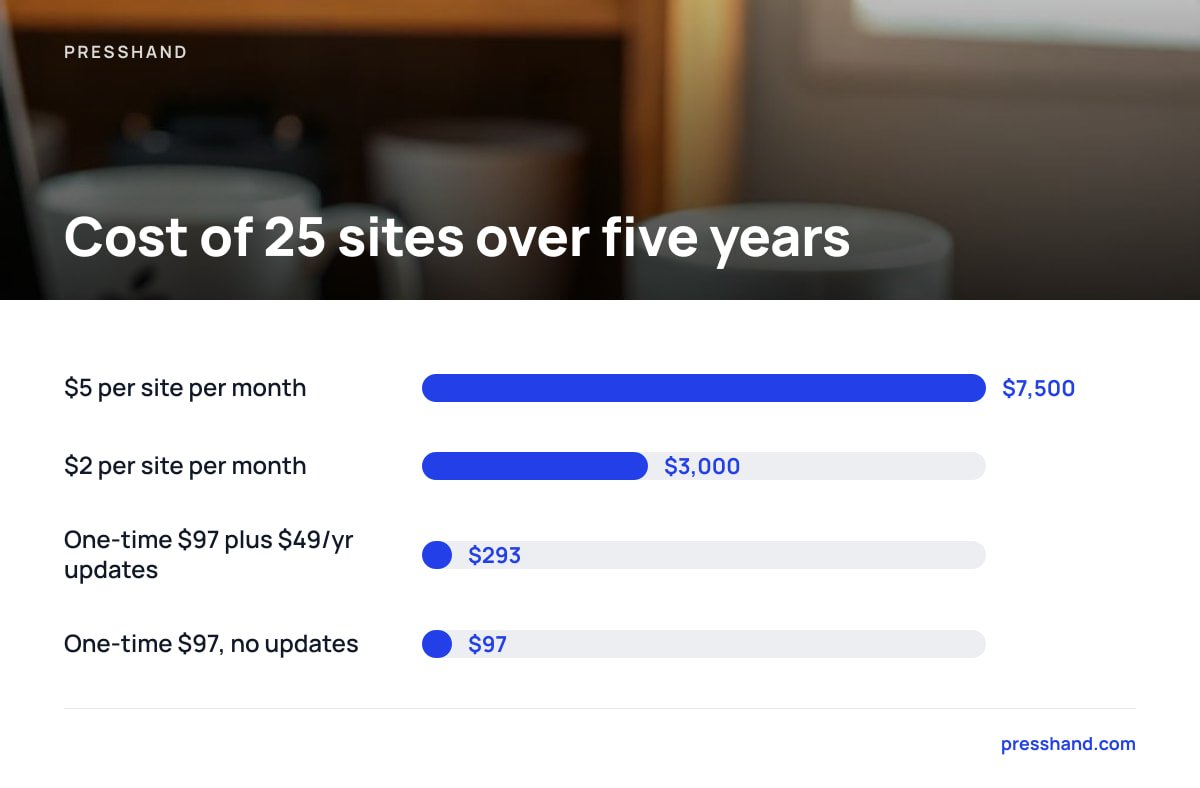
Here is the arithmetic for a freelancer with 25 sites. It uses a hypothetical per-site fee of $2 a month and compares it with a one-time license that charges $97 up front and $49 a year for optional updates after the first year.
| Model | Year 1 | Years 1–3 | Years 1–5 |
|---|---|---|---|
| $2 per site per month, 25 sites | $600 | $1,800 | $3,000 |
| $5 per site per month, 25 sites | $1,500 | $4,500 | $7,500 |
| One-time $97, plus $49/yr updates after year 1 | $97 | $195 | $293 |
| One-time $97, no updates bought | $97 | $97 | $97 |
At $2 per site per month, 25 sites cost $3,000 over five years. The same 25 sites cost $293 on a one-time license with four years of optional updates.
Per-site pricing isn't always a rip-off. If you run three sites and want a hosted service to take on all the responsibility, a monthly fee buys a reasonable kind of peace. It becomes a bad deal when your site count grows faster than your rates do, and for most agencies it does.
Where "Update All" Is the Wrong Answer

The feature most dashboards advertise first is a single button that updates every plugin on every site. It's also the feature most likely to cause your worst Monday of the year.
Plugin conflicts multiply across sites. A plugin update that works fine on 39 sites can break the 40th, because that site runs an older theme or a custom snippet nobody documented. If you push to all 40 at once, you find out from the client.
Rollbacks aren't automatic. Some dashboards offer rollback. Many depend on a backup existing from minutes before the update. If your backups run nightly and the update went out at 3 p.m., your rollback point is yesterday's content.
Major versions deserve their own day. A minor security release and a major version jump are different risks. Treat them differently.
Pro Tip: Sort your sites into three rings by how much damage a breakage would do. Ring one is your own sites and test installs. Ring two is low-traffic client sites. Ring three is stores and anything that earns money by the hour. Update ring one, wait 24 to 48 hours, then ring two, then ring three. You lose about two days of speed and avoid almost every bad release, because someone else's ring three usually reports the bug first.
Free WordPress Management Tools, and Whether You Can Host WordPress for Free
You can do a surprising amount without paying anything. Free options are slower and ask for more of your own time, but they work.
WordPress itself. The admin dashboard handles updates, users, plugins and content. Since version 5.5 it can also auto-update plugins and themes one by one, which is free and often enough for a handful of sites.
WP-CLI. It's free and official, and it's the fastest way to run the same change across many sites if you can write a short shell loop.
Free tiers of dashboard plugins. Several remote dashboards keep their core features free and charge for add-ons such as scheduled backups or white-labeling. Read what "free" covers before you connect 20 client sites to it.
Can you host WordPress for free? Yes, with conditions. The WordPress software is free and open source. Free hosting tiers exist, but they usually limit plugins, put you on a subdomain or show their own ads, and none of that is acceptable for a client site. The truly free option is to run WordPress locally on your own computer for development and testing. That is useful for building and learning, but nobody on the internet can see it. For a real site, plan on paid hosting. WordPress.org's hosting requirements list the PHP and database versions it recommends, which is a useful checklist when you judge a cheap host.
The Basics People Search First: CMS, Editors and Logging In
These questions come up alongside every search for a WordPress management tool, so here are direct answers.
Is WordPress a content management system?
Yes. WordPress is an open-source content management system released under the GPL license. WordPress.org describes it as software you can use to create a website, blog or app. It separates your content from your design, so you can change themes without rewriting posts. It began as blogging software and now runs everything from one-page portfolios to large stores.
What are some good WordPress editor plugins?
Start with the editor you already have. WordPress has shipped the block editor as its default since version 5.0 in December 2018, and for most sites it's good enough that an extra editor plugin only adds weight.
If your team or your older content needs the pre-2018 interface, the official Classic Editor plugin from WordPress contributors restores it. For SEO fields inside the editor, the panels added by Yoast, Rank Math, All in One SEO and SEOPress are the most useful "editor plugins" for most sites. Page-builder plugins are a separate category. They give you more control over layout, but your content becomes harder to move to another setup later, so think carefully before committing a client site to one.
How do I access my WordPress site?
For the admin area, add /wp-admin to your site address (for example, example.com/wp-admin) and log in. If that redirects oddly, /wp-login.php usually works. For server-level access, use SFTP or SSH with the credentials from your host. For tools and AI clients, access runs through the REST API and an application password. That is a separate credential you can revoke without changing your main login. WordPress Application Passwords: What They Do and Why They Fail walks through how to set one up and why some hosts block them.
How AI Changes WordPress Admin, and Where You Still Check Its Work
Until recently, an AI tool could draft a post, but you still pasted it into WordPress, set the featured image, filled in the SEO fields and fixed the menu yourself. The Model Context Protocol, an open standard Anthropic introduced in November 2024, changed that. An assistant can now call real tools, such as "create draft," "update menu" or "set meta description," on a real site.
On WordPress, those calls run through the REST API. Authentication usually happens with application passwords, which WordPress core added in version 5.6.
Application passwords arrived in WordPress core in version 5.6. Every AI connection to your sites can have its own revocable key, separate from your login.
That revocability is the main safety feature. Here is how to use AI admin without regretting it:
Give each connection its own user. Create a dedicated WordPress user with the narrowest role that does the job. An Editor can publish posts and can't install plugins. Grant Administrator only when you need plugin or theme work.
Draft first, publish second. Ask for drafts and review them. AI writes fluent copy and occasionally invents a product feature.
Treat bulk SEO changes like bulk updates. Rewriting 200 meta descriptions in a minute is wonderful, and so is checking ten of them before you approve the other 190. Meta Descriptions in WordPress covers what a good one looks like.
Know where it runs. A local MCP client keeps credentials on your own machine. A remote server is reachable from anywhere but needs proper hardening. How to Set Up an MCP Server explains when each makes sense.
The honest position is that AI is now very good at admin and content work and not a replacement for backups or monitoring. Keep a maintenance layer and let AI take over the work that used to fill your afternoons.
Run Every Site From One Chat Window, for One $97 Payment

If your hours go into admin rather than updates, Presshand is built for that job. It runs on your own machine or server and connects Claude or ChatGPT to every WordPress site you own. You can then ask in plain English for any of 83 jobs, including posts, pages, images, menus, plugins, CSS and comments. It scores live pages for SEO out of 100 and works with Yoast, Rank Math, All in One SEO and SEOPress.
The pricing is the per-site math above, reversed. You pay $97 once and cover every site, with no monthly caps. Agencies can pay $197 for rebrand and resell rights. Updates are included for 12 months and then cost an optional $49 a year. You also get three months of ReplaStats analytics plus its plugin to keep. The caveat is that you bring your own Claude or ChatGPT account, and Presshand handles admin rather than backups. Keep your backup and monitoring tool, and check our spec sheet against the jobs you actually do.
Frequently Asked Questions
What is the best WordPress management tool?
There isn't a single best tool, because the category covers two different jobs. For updates, backups and uptime, a remote dashboard or a good host panel is the right choice. For content, SEO and menu work, an AI client connected through MCP saves more time. Most people running several sites do best with one tool for each job.
Is there a free WordPress management tool?
Yes. WordPress's built-in dashboard handles updates and auto-updates, WP-CLI is a free official command-line tool for bulk changes, and several remote dashboards keep their core features free. The cost moves into your own time and into paid add-ons such as scheduled backups.
Is WordPress Multisite a good way to manage multiple sites?
Only when the sites are genuinely related, such as departments of one organization. Multisite shares one database and one plugin set, so a single bad plugin or a security problem can affect every site at once. Unrelated client sites are usually safer as separate installs managed from a central tool.
Are per-site fees for WordPress tools worth paying?
They can be for a few sites when you want a hosted service to take full responsibility. As your site count grows, they add up quickly: at a hypothetical $2 per site per month, 25 sites cost $3,000 over five years. One-time licenses usually win once you pass about ten sites.
Is it safe to let AI edit my WordPress sites?
It's reasonably safe if you set it up carefully. Give the AI connection its own WordPress user with the narrowest role that works, and authenticate with a revocable application password. Have it create drafts for review before anything is published, and keep your normal backups running.
Sources
- About WordPress | WordPress.org
- Hosting requirements | WordPress.org
- Application Passwords: Integration Guide | Make WordPress Core
- Model Context Protocol documentation | Model Context Protocol
- WP-CLI: Command line interface for WordPress | WP-CLI
- Usage statistics of WordPress | W3Techs